Monthly Archive for April, 2010

TwInbox now supports sending new-style retweets (Version 2.0.1.112)

TwInbox LogoToday we released a new version of TwInbox – 2.0.1.112. This release includes one frequently requested new feature – an ability to send new-style retweets.


New-style retweet support

When you select a tweet and click the RT button, you will see a dialog which will let you select between the new-style and old-style retweet. It looks like this:
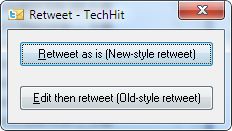
Select the type of retweet you want to send

Select the type of retweet

Next time you click RT, this window will remember your previous selection, so you can simply hit Enter.

Note that this retweet type selection window is only shown when you retweet tweet messages. If you hit the RT button when a regular message is selected, you will see the old-style retweet. This is because only tweets can be retweeted using the new-style RT.

Download TwInbox  (version 2.0.1.112).

We are looking forward to your feedback

As always, we are looking forward to hearing your feedback.  If you enjoy using TwInbox, please show your support by telling your friends about it. Thank you for your continued help and support in making TwInbox a success!

Do not forget to follow @TechHit to receive update notifications.


Do you have too many messages in your Inbox? Try SimplyFile  – Intelligent filing assistant for Microsoft Outlook.


TwInbox 2.0.1.111 release

TwInbox LogoToday we released a new version of TwInbox – 2.0.1.111. This release includes several small but important usability-enhancing features.


Selecting recipients and hash tags

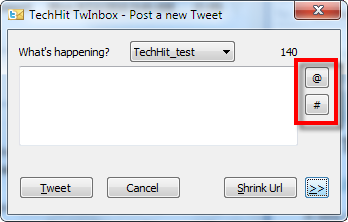
TwInbox will remember sender names and hash tags for all messages you receive. The “Post a new Tweet” window now has buttons for picking recipients and hashtags using convenient selection dialogs. 

Click "@" or "#" to insert @recipients or #hashtags

Click "@" or "#" to insert @recipients or #hashtags

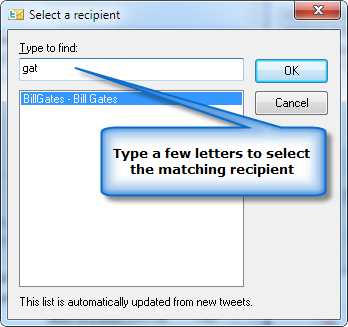
To select a recipient, click the “@” button. In the “Select a recipient” window, type a few characters of the person’s name to select it, then click OK.

Type a few letters to select a @recipient

Type a few letters to select a @recipient


Selecting hashtags works in a very similar fashion.

Note: In order for a tweeter user to appear in the selection window, you have to have received a tweet from them after installing this new version. The same applies to hashtags. 

Sorting retweets into recipient folders

This version also includes a small change to the way tweets are sorted into recipient-based sub-folders. (Applies only if you enable that option). Now tweets are stored in the folder for the person who retweeted it, instead of the folder for the person who sent the original tweet. This change is a result of feedback of many of you who said that you would prefer this behavior. It will only create folders for the senders you follow.

Download TwInbox 2.0.1.111

Download TwInbox 2.0.1.111.

We are looking forward to your feedback

As always, we are looking forward to hearing your feedback.  If you enjoy using TwInbox, please show your support by telling your friends about it. Thank you for your continued help and support in making TwInbox a success!

Do not forget to follow @TechHit to receive update notifications.


Do you have too many messages in your Inbox? Try SimplyFile  – Intelligent filing assistant for Microsoft Outlook.


Performing a location-based Twitter search in TwInbox

When you do a Twitter serach using the website, you can use the “near:” operator to find tweets related to a particular location. For example, here is how you can look for a happy hour near One Market Street in San Francisco.

Unfortunately, the “near:” operator is not supported by the Twitter search API. So when you perform a search from TwInbox, or another Twitter client, you cannot use it. However, all is not lost. There is a relatively simple workaround. You can find coordinates of (geocode) the location you are looking for, and then use the “geocode:” search operator.

Step 1 – Geocode the location

Geocoding a location is very simple. Here is an article that shows how to find latitude and longitude of a location using Google Maps. Using that method you can determine that coordinates of One Market Street in San Francisco are 37.794108,-122.39511.

Step 2 – Configure a search

Using the coordinates, you can perform the search. For example, you can use Twitter website search.

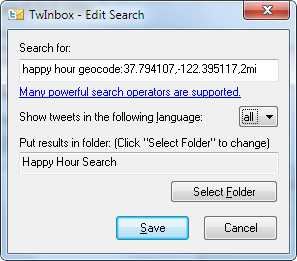
Or you can configure a search in TwInbox:

TwInbox location-based search using geocode

TwInbox location-based search using geocode


Did you find this tip useful?

How to find latitude and longitude (geocode) for any address using Google Maps

There are many scenarios that require mapping an address or location to geographic coordinates (geocoding).  For example, we had a need to do that in order to search Twitter using TwInbox. There are literally thousands of other cases that require latitude and longitude of a particular location.

There are websites out there that let you type an address and see the geocode for that address. However, they are usually limited in some way. For example, they only work within a particular country.

In this article we show you how to find geocode for any location, using Google Maps. All it takes is a few simple steps.

Step 1 – Find the location in Google Maps

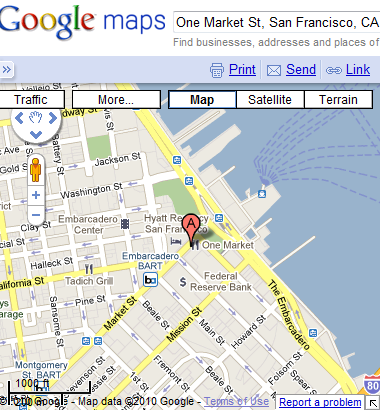
Start by looking up the address or location in Google Maps. In this example, we lookup “One Market St, San Francisco, CA”.

Find address in Google Maps

Find the location in Google Maps


Step 2 – Click on the Link hyperlink

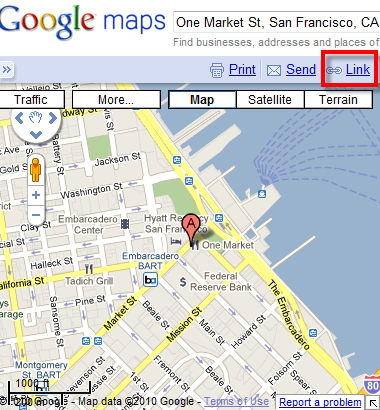
Click on the “Link” hyperlink in the upper-right corner of the map.

Click on the Link

Click on the Link


Step 3 – Click on Customize

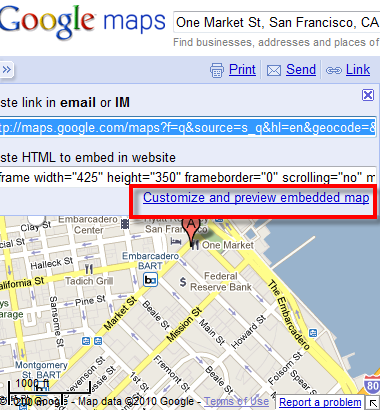
Click on “Customize and preview embedded map”.

Click Customize and Preview

Click Customize and Preview


Step 4 – Find latitude and longitude (geocode)

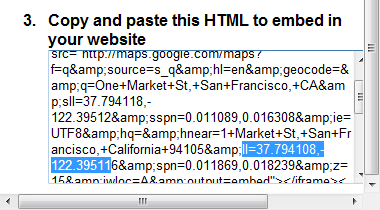
In the preview window, scroll down to section 3 (HTML embed code). Look for the fragment that starts with “ll=”. In our example, it is “37.794108,-122.39511″ (See the screenshot below). That’s it. Pretty simple!

Note: be sure you are looking for “ll=” and not for “sll=”.


Get latitude and longtitude

Get latitude and longitude


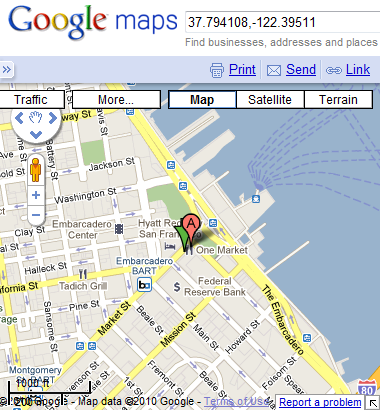
You can verify your result by entering the values back into Google Maps:

Verify your result

Verify your result


Did you this tip useful?