OutTwit leaves Beta, Gets a new name – TwInbox.

TwInbox LogoToday we are announcing the first official, non-beta release of our popular Twitter add-in for Microsoft Outlook.

This version introduces significant enhancements in usability and offers easier access to more information right where you need it. For example, you used to have to click on a person’s profile to see her follower count. Not anymore. Now it is available at a glance when you are reading a tweet.
These changes make OutTwit TwInbox a perfect Twitter client – simple enough for Twitter newbies and powerful enough for business professionals.

New name – TwInbox

OutTwit was a great name for the product. It served us well through the beta cycle. Going forward, the product will be known as TwInbox for Microsoft Outlook.

Enhanced usability

We have moved some of the more frequently used commands from the drop-down up to the toolbar. Now you can compose new updates, send @replies and direct messages and retweet messages and tweets right from the toolbar. You can also configure which components you would like to see displayed on the TwInbox toolbar.

Easier access to information

We have made some of the information that used to require extra clicks, much easier to access. Information such as sender’s full name, website address, follower counts and the number of updates, is shown in every message. No long do you need to click on the sender name to see the profile in a separate window. All necessary information is displayed right where you need it.

Note: Due to the way Twitter Search API works, this information is not available for tweets fetched via search. Twitter folks are working on this issue.
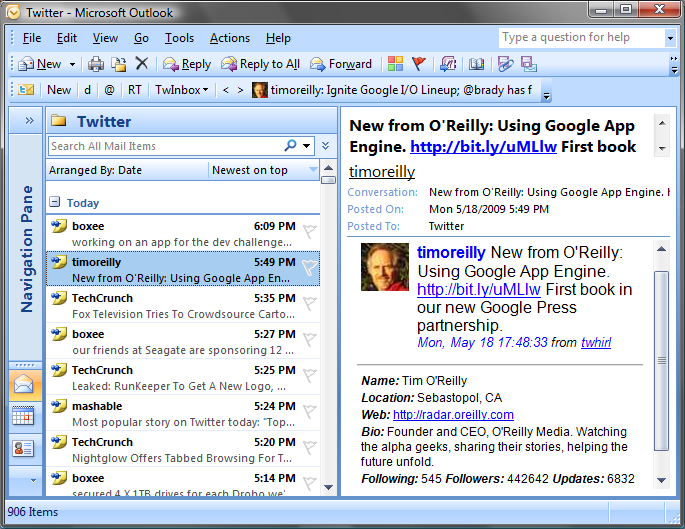
TwInbox Screenshot
Click to expand the image

This is yet another example how TwInbox makes information more available to you and makes your Twitter stream much easier and faster to consume.

Improved picture preview

We have enhanced TwitPic picture preview and introduced support for Twitgoo picture preview. So you can see images right in the tweet, without having to click through.
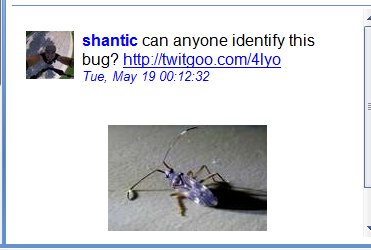
Twitgoo image preview

Thank you!

We would like to say a big Thank You! to all OutTwit users. Your feedback and support has been instrumental in helping us reach this milestone. We hope that you like the enhancements we are making. We know we can count on your continued support with future development of TwInbox. Please keep the feedback coming. We love hearing from you!

Download TwInbox here!

.

New product – QuickJump – invitation beta launching today

We are excited to announce that today we are starting a public beta testing cycle for our brand new product – QuickJump. QuickJump is our first product that works outside of Outlook.

QuickJump solves a relatively narrow, but very important productivity issue – navigating between various file system folders. QuickJump will help you get to the right folder with just a few keystrokes. What is especially interesting about it is that it works in standard “File Open” or “Save As” dialogs of any windows applications. Of course, you can use it to open folders in File Explorer as well.

How much testing went into QuickJump to date? 

QuickJump has been in production deployment at several pilot sites for about two months now. We would like to sincerely thank all participants in the private beta for their feedback and encouragement. Private beta-tester feedback has been overwhelmingly positive for both usability and stability of the product.  One of them, Mario Fortier, kindly allowed us to publish his quote. Thank you again!

QuickJump is an incredible piece of software. We first tried it in combination with MessageSave and ended out using it all the time.


We are an IP firm in Canada and are dealing with more then 50,000 files each having it’s own sub directory often with subdirectories. With QuickJump we can really jump into any of those sub in a flash.

QuickJump and a bit of methodology and I believe we might never need a Document Management system.

My only regret : I wish I had coded it myself.

Where can I learn more?

Watch a quick screencast demo.

We have also put together this FAQ page.

Enough already, let me download and try it.

To download QuickJump today, you will need a beta invitation code.  Please use the following invitation code – qjbeta38982. Download from this page.


Thank you for your interest! We are looking forward to your feedback.


Updated:

Several beta-testers were kind enough to publish reviews of QuickJump.

If you write a review and would like us to list it here, please send us a note.


.

Outlook Addin or toolbar disappears when you close or restart – how to fix

Some of you may experience a situation where an add-in goes missing or a toolbar disappears when you close and reopen Outlook. This is usually caused by one of several reasons.

1. Outlook does not fully exit when you close it

In this case, Outlook does not exit completely when you close its main window. This is usually caused by a third party add-in which prevents Outlook from exiting. You can usually recover the missing toolbar by following these steps:

  • Close Outlook
  • Open the Task Manager
  • Switch to the Processes tab
  • Find OUTLOOK.EXE in the “Image Name” column
  • Select it and click “End Task”
  • Wait 5 seconds, then start Outlook again.

That should bring your missing toolbar back.

If this keeps happening to you, you might want to disable some of the add-ins you have installed, to find which one is causing this issue.

How to disable add-ins in Outlook 2010
How to disable add-ins in Outlook 2007
How to disable add-ins in Outlook 2003

2. Outlook disabled the add-in

If the above steps did not help, please try rebooting. If you still do not see the toolbar, it is possible that Outlook disabled the add-in. In that case, you can re-enable it using the following steps:

Outlook 2010:

  • Select the “File” ribbon tab
  • Click “Options”
  • Click “Add-Ins” in the left column of the Options window
  • Select “Disabled Items” in the “Manage” drop-down and click “Go”
  • Select the add-in from the list and click “Enable”
  • Restart Outlook

Outlook 2007:

  • Click on “Help->Disabled Items” menu command
  • Select the add-in from the list and click “Enable”
  • Restart Outlook

Outlook 2003:

  • Click on “Help->About Microsoft Outlook” menu command
  • Click the “Disabled Items” button in the lower right-hand corner
  • Select the add-in from the list and click “Enable”
  • Restart Outlook