 This article describes some of the most common reasons that cause Outlook to become unstable, crash, hang or freeze.
If you are experiencing issues with your Outlook, try these items one-by-one and hopefully one of them will help.
Corrupted PST file
By far the most common reason for Outlook crashes, instability and unexplained weird behavior is a corrupted PST or OST file.
If you have an Exchange (or Office 365) account, you have an OST file. Follow the next section – “Corrupted OST file”. For other account types, follow this section.
Microsoft is aware of this issue and provides a tool to fix it – Inbox Repair tool (scanpst). Follow the steps listed in that Microsoft Knowledge Base article to run ScanPST. Run it on all your PST files.
Important: In many cases, ScanPST requires more than one pass to fix a corruption. Run ScanPST repeatedly, until it reports that there are no more errors.
In some cases, a corruption might be so bad that ScanPST is unable to fix it. ScanPST will tell you that there are no more errors, but you would still experience issues. In this case, you should create a new PST file and copy all items from the old PST into the new one. After you do that, close the old PST file (Right-click the top-most folder of the PST, then select “Close”) and start using the new one.
Note: You can also use scanPST to check and fix your OST files.
Corrupted OST file
To fix an OST file for an Exchange-based account, you simply rename it and let Outlook rebuild it from the server.
Before deleting the OST, check that Outlook is fully synced. (It should say “All folders up to date” in the status bar at the bottom of the main Outlook window).
First, find your OST file:
- Click “File” in the upper-left corner of the main Outlook window.
- Click the square “Account Settings” button, then the “Account Settings” menu command.
- Switch to the “Data files” tab.
- Select the OST file.
- Click “Open File Location”. This will open File Explore and select the OST file.
Then rename the OST file, so Outlook rebuilds it.
- Close Outlook.
- Rename the OST file. For example “Mary.ost” to “DELETEME_Mary.ost”. (You can delete the old file later).
- Restart Outlook and let it rebuild the OST file. Note: This operation might take a long time if you have a large Exchange mailbox, but you can still use Outlook while it happens.
For a non-Exchange account OST, such as IMAP, use the ScanPST method in the first section of this article.
Corrupted Profile
Sometimes an Outlook profile might get corrupted. In this case, you have to create a new profile.
Corrupted Outlook Configuration Files
[This section is no longer relevant. It applied to old versions of Outlook.]
In addition to PST, OST and profiles, Outlook has several other files which might get corrupted. If the above steps did not help, please try renaming outcmd.dat, extend.dat and Frmcache.dat as described in Part 2 of this article.
Misbehaving Add-ins
Running unnecessary add-ins may make Outlook slower and even cause stability issues. Check what add-ins you have installed. You probably have more add-ins installed than you think. Use the following instructions to see what add-ins you have installed and disable the ones you are not using. Leave only the Add-ins you absolutely must have in Outlook.
How to disable addins in Outlook 2016, 2013 and 2010
How to disable addins in Outlook 2007
How to disable addins in Outlook 2003
Keep Windows Up To Date
Regularly use Windows Update to keep your computer up to date with the latest patches and service packs. We recommend that you configure Windows to check for updates automatically.
Hope you found this article useful. If you have additional tips, please share them in comments below.
TechHit products will help you spend less time managing email and keep Outlook running in tip-top shape.
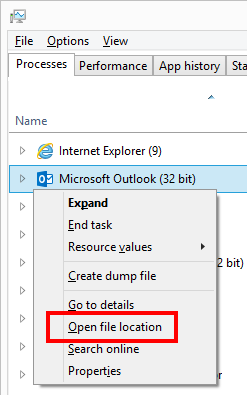 If you have Microsoft Office installed, you have scanpst.exe installed as well. It is located in the same folder as Outlook. Here is an easy way to find it: